
Change My Order in the Woolworths App
Save time when changing your order
The Change My Order function in the Woolworths App (22.02 version or above) saves you time when you want to:

Add or remove items from your order

Change the Delivery or collection date or time

Add or change your Delivery instructions
Change the type of Delivery or collection
Change your order using these easy steps
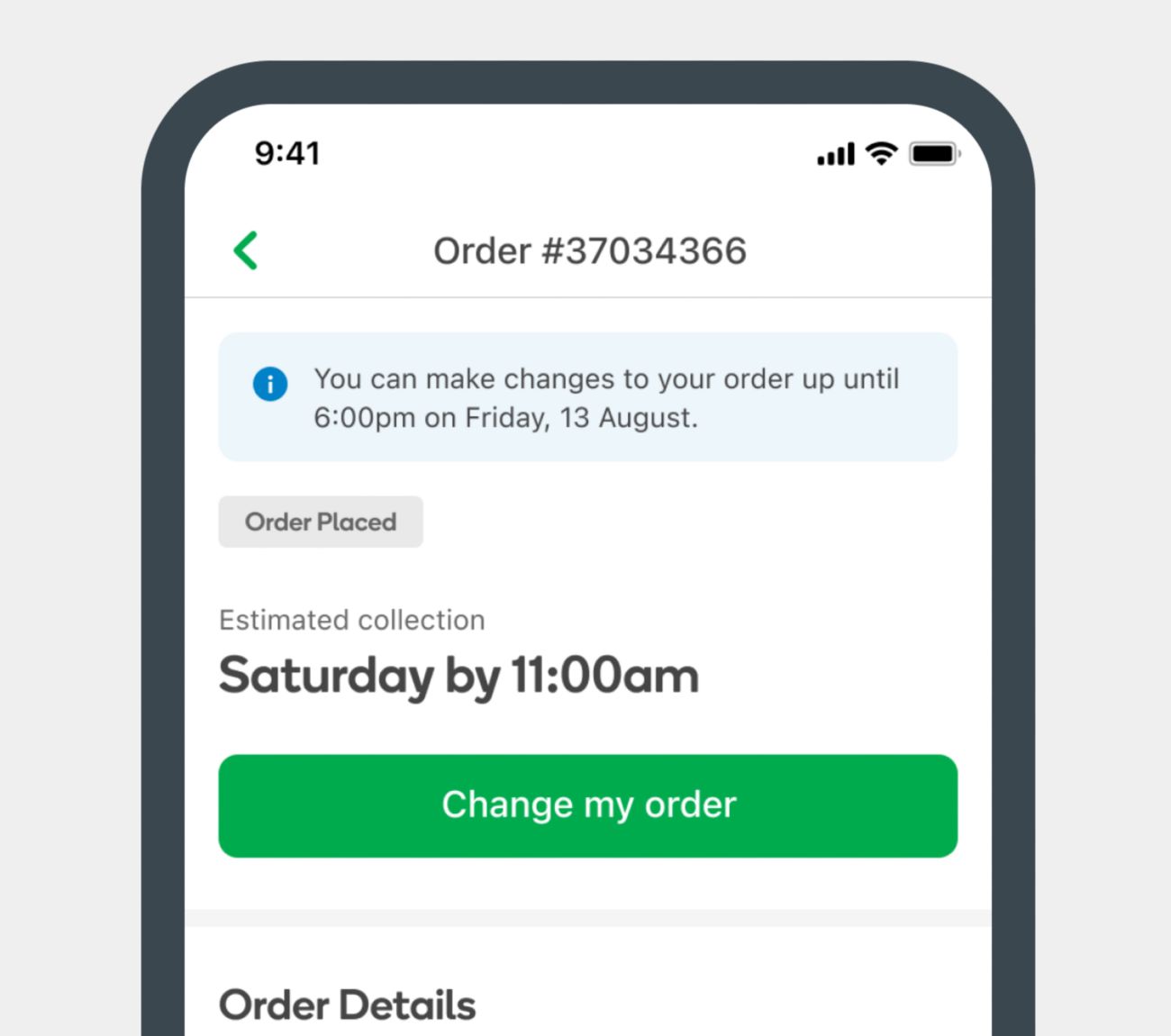
01
Tap the Change my order button
Navigate to My Orders section in the Woolworths App and tap on the Change my order button
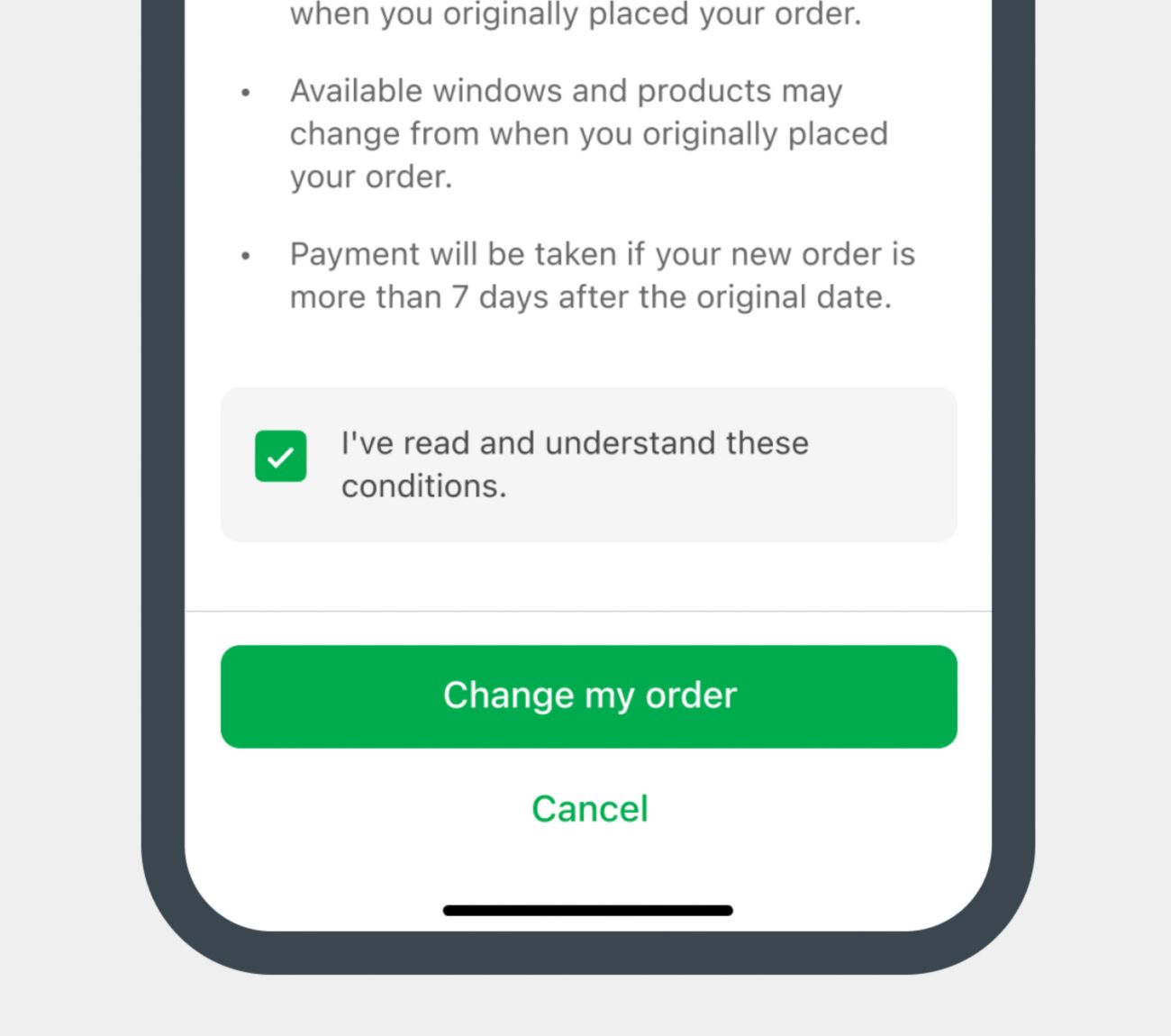
02
Accept terms and conditions
Tick to acknowledge terms and conditions, then tap the Change my order button
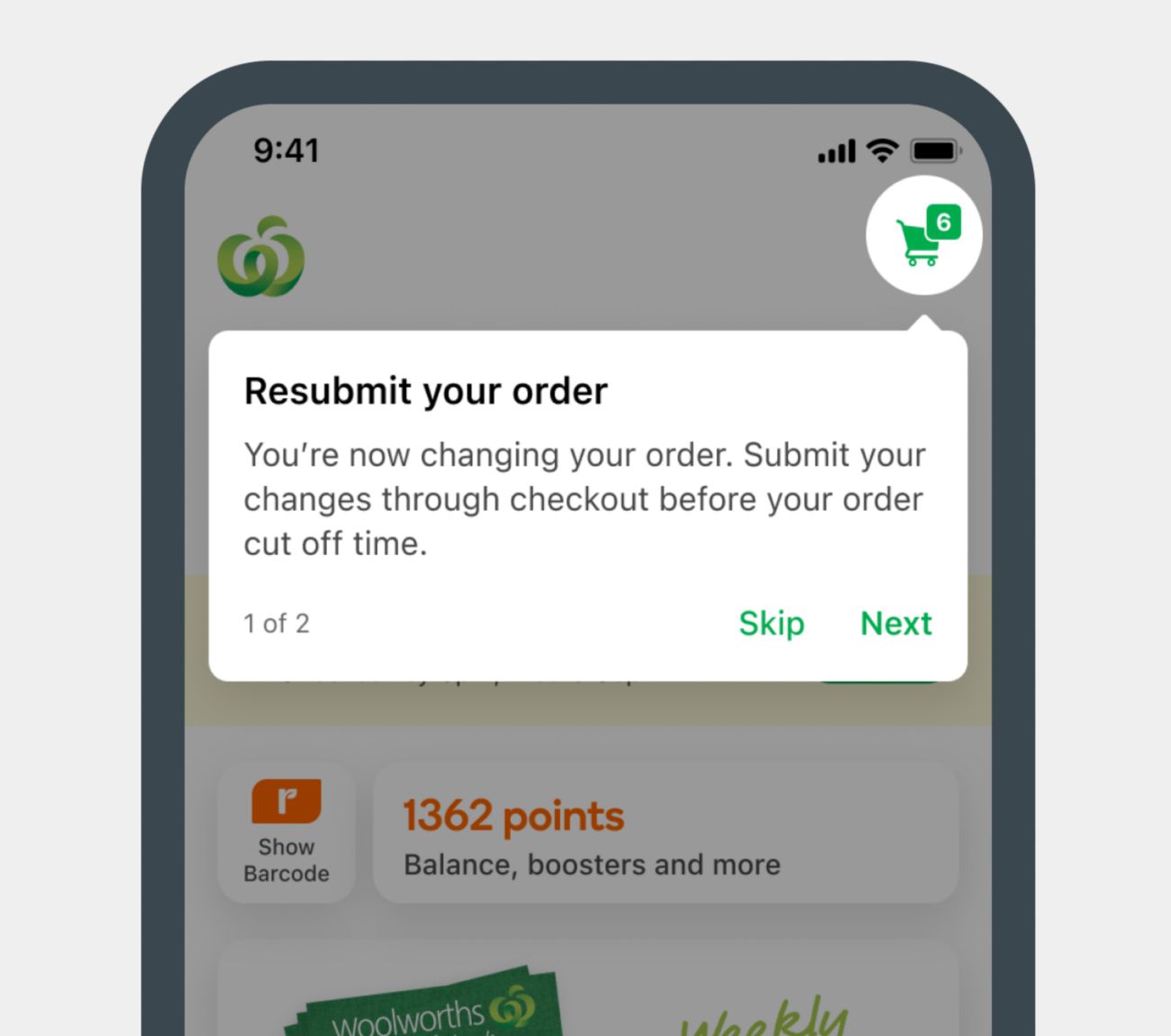
03
Resubmit your order
Confirm your changes by tapping on Checkout. Your original order won’t be changed until you complete this step.
04
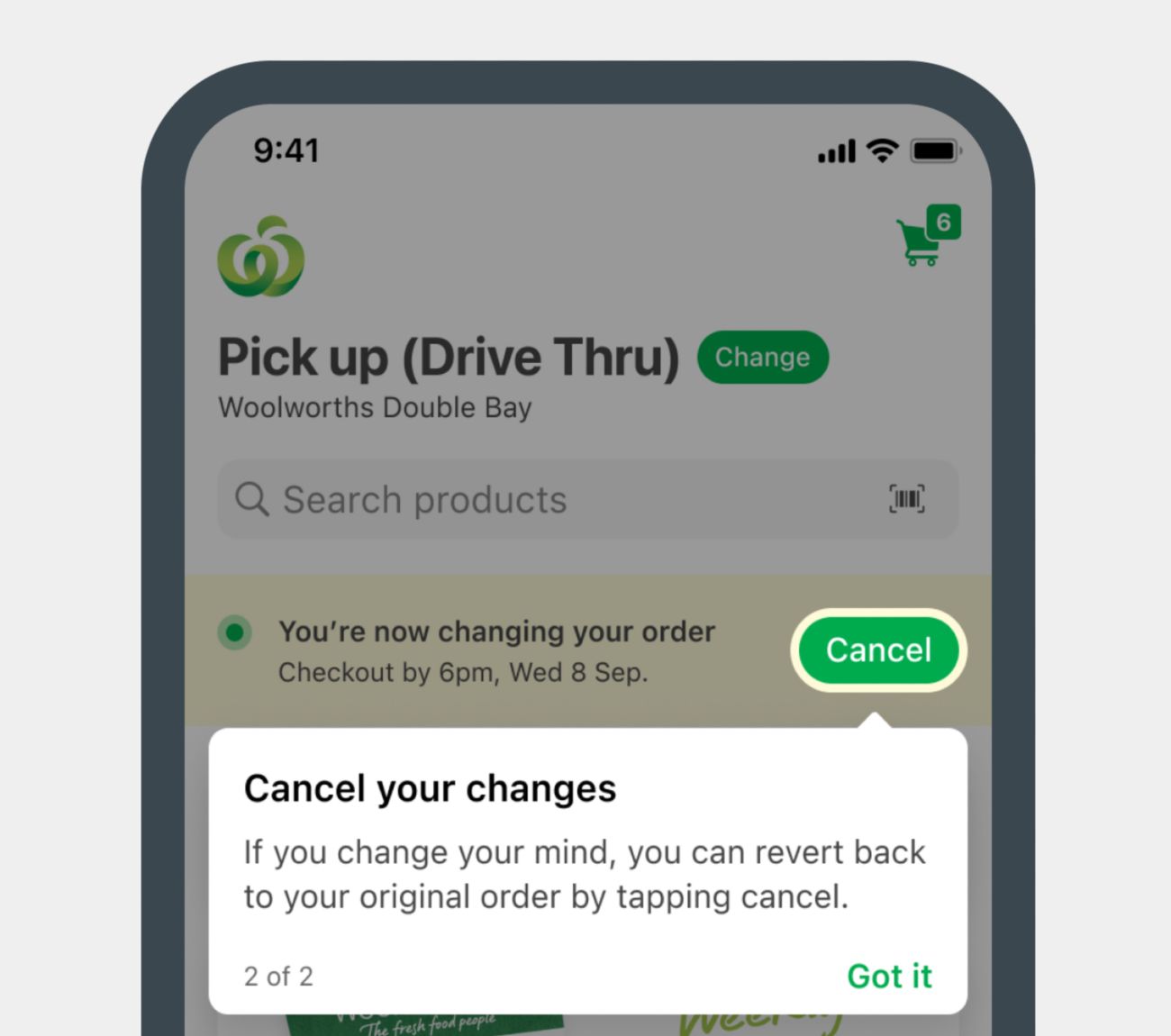
Or cancel your changes
Cancel changes at any time and keep your original order by selecting Cancel.
Things to remember
- Check the cut-off time and date when making changes to your order.
- If your changes involve adding additional items to your order, you will only need to pay the extra amount at Checkout.
- If your changes involve removing items from your order, you will be refunded to the same payment method (may take 3-5 business days).
- Change My Order can’t be used for Delivery Now or Direct to boot Now orders.